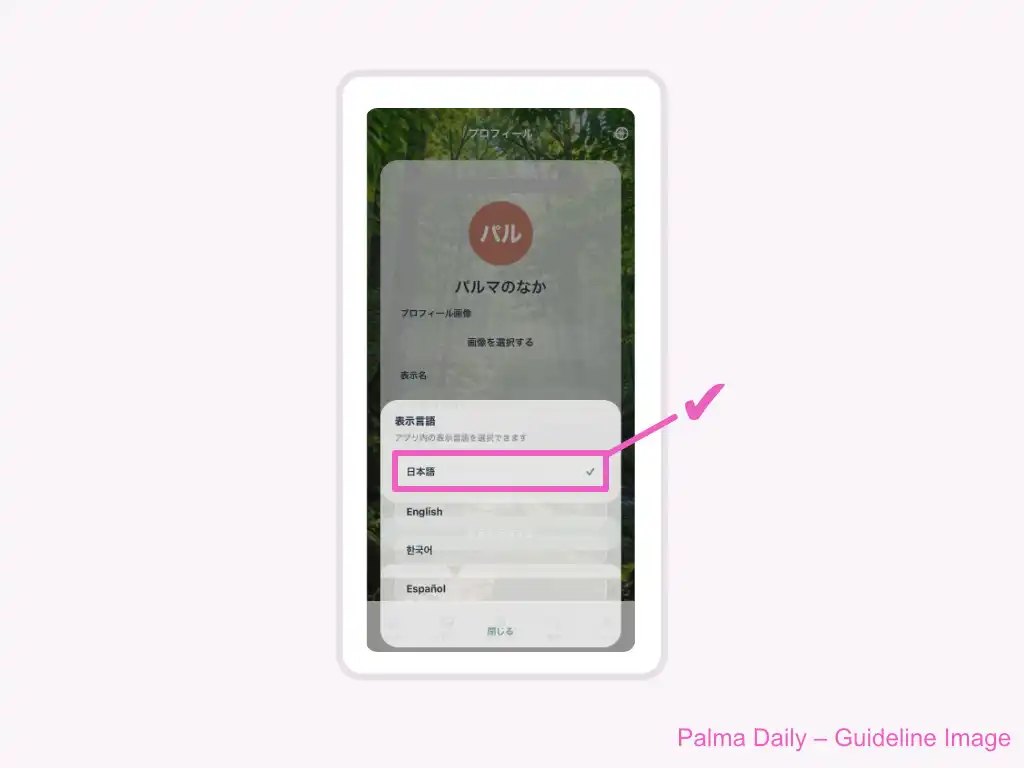
Palma Dialy lets you change the display language used in the app. This guide walks through the steps from the home screen to the language selection screen.
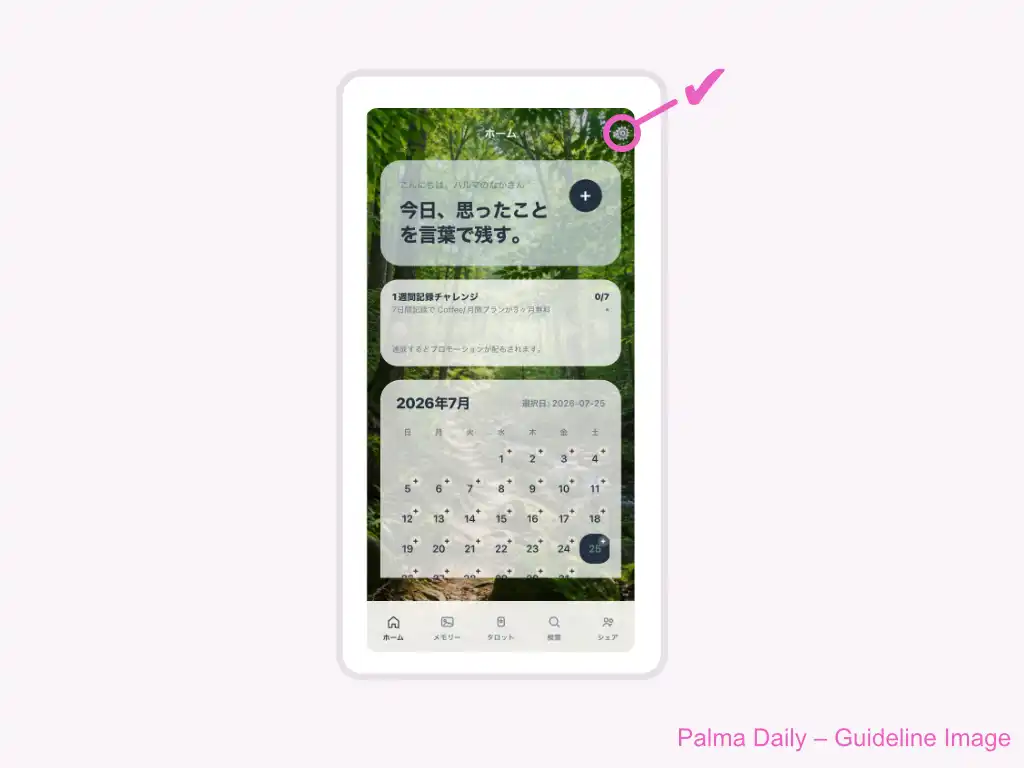
1. Open settings from the home screen
Open the home screen, then tap the settings icon in the top-right corner.
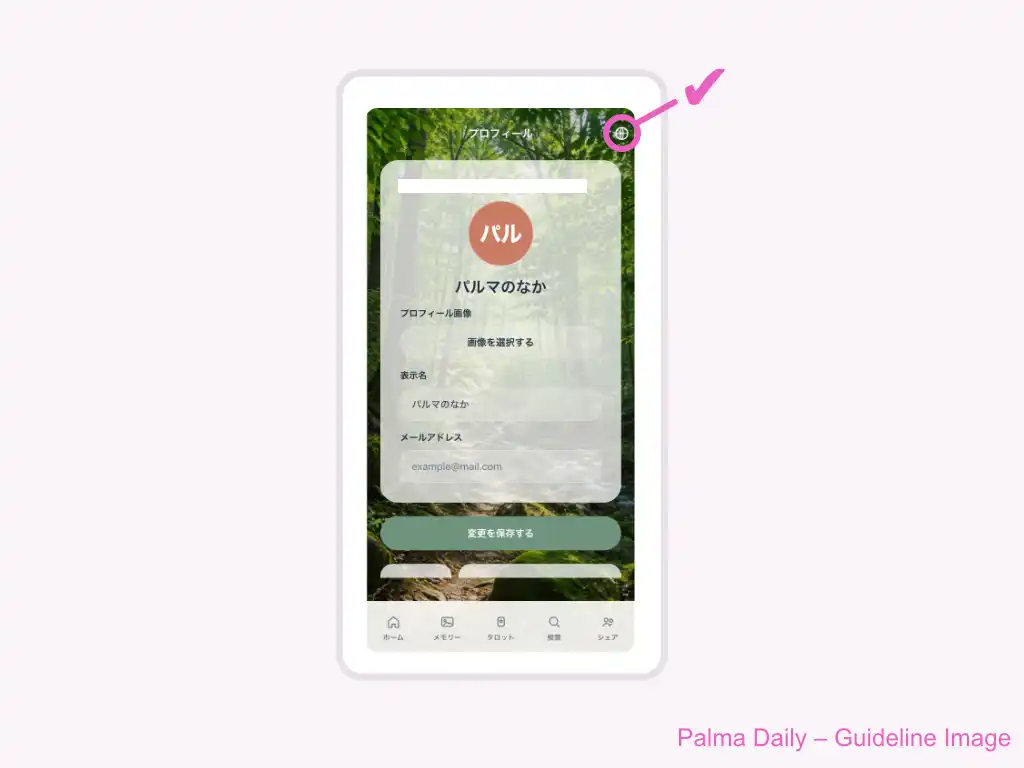
2. Open language selection from settings
When the settings screen appears, tap the icon in the top-right corner.
3. Choose a language
A list of available languages will appear. Choose the language you want to use, and the app display language will change.
- +Japanese
- +English
- +Korean
- +Spanish